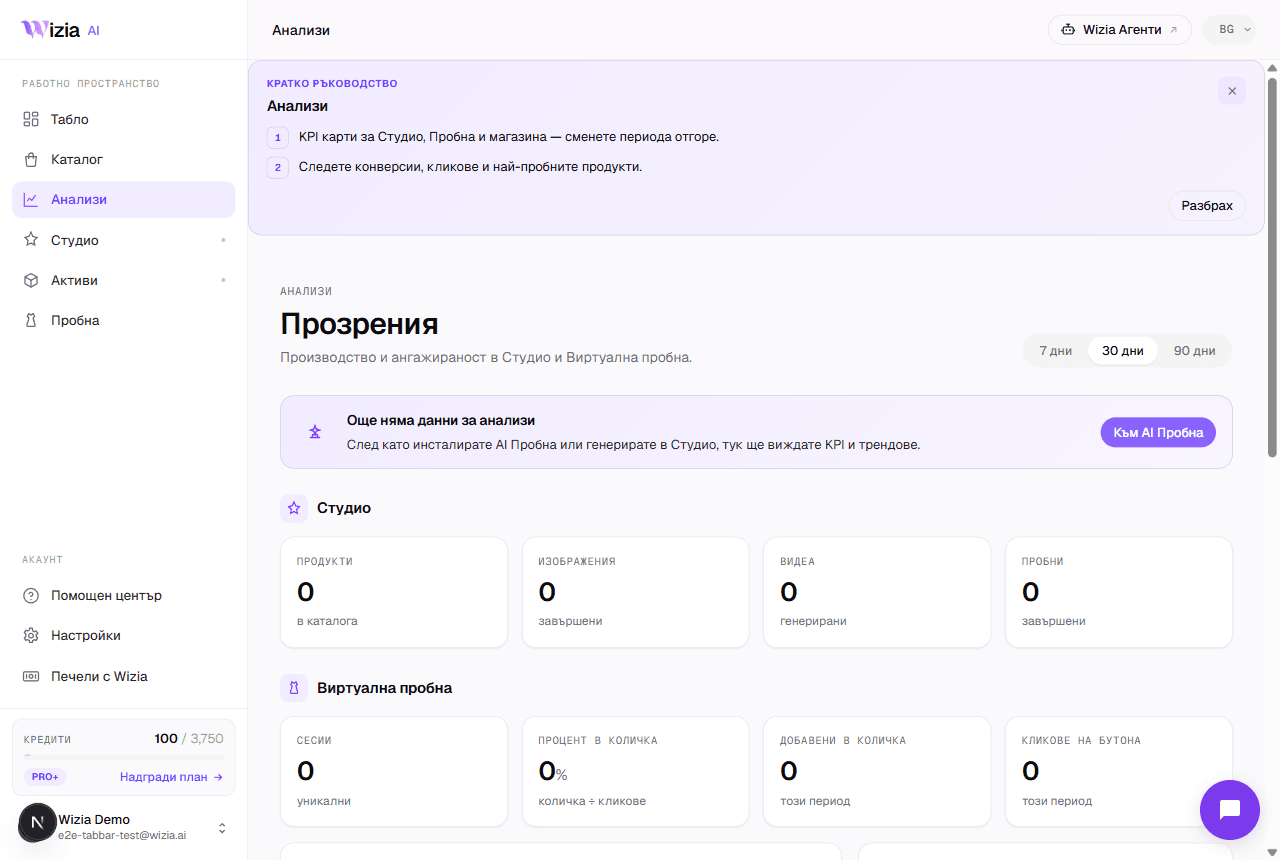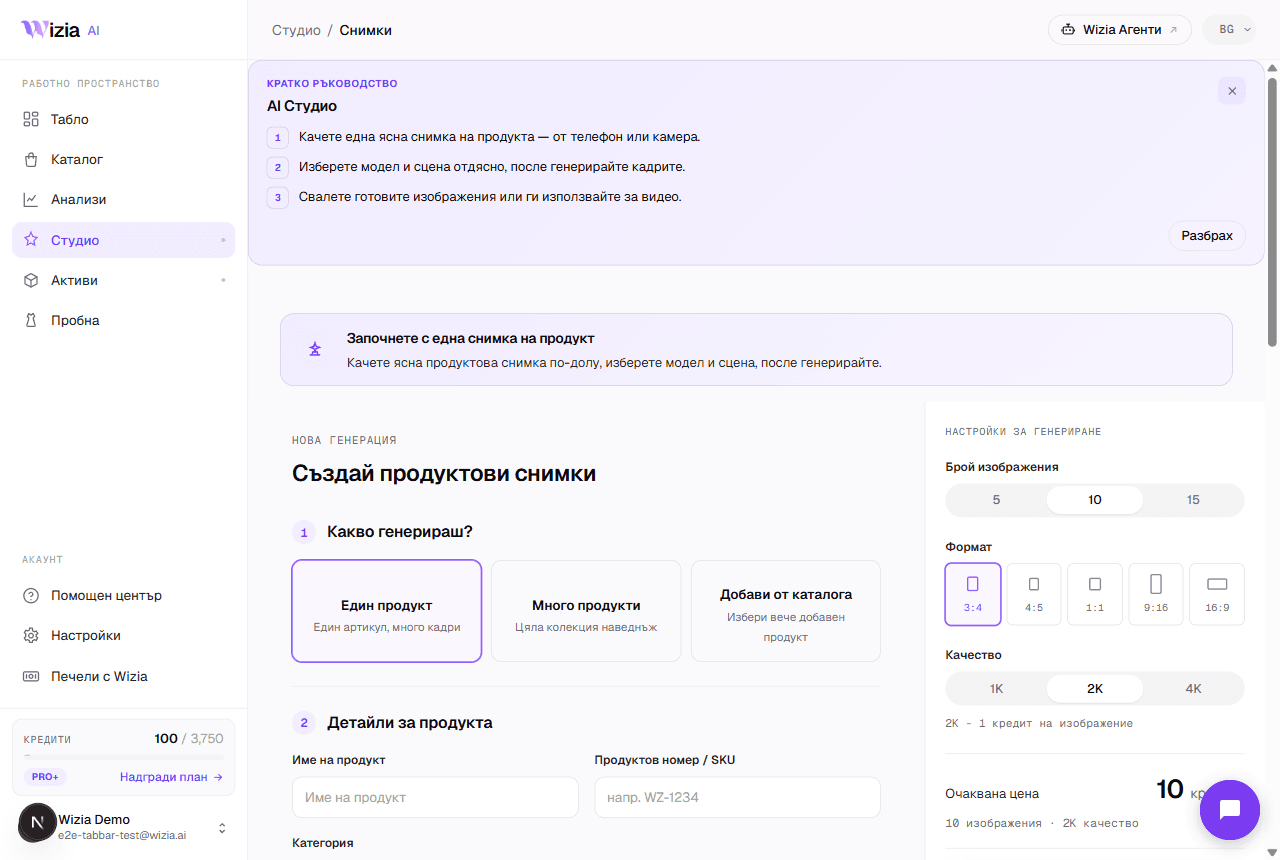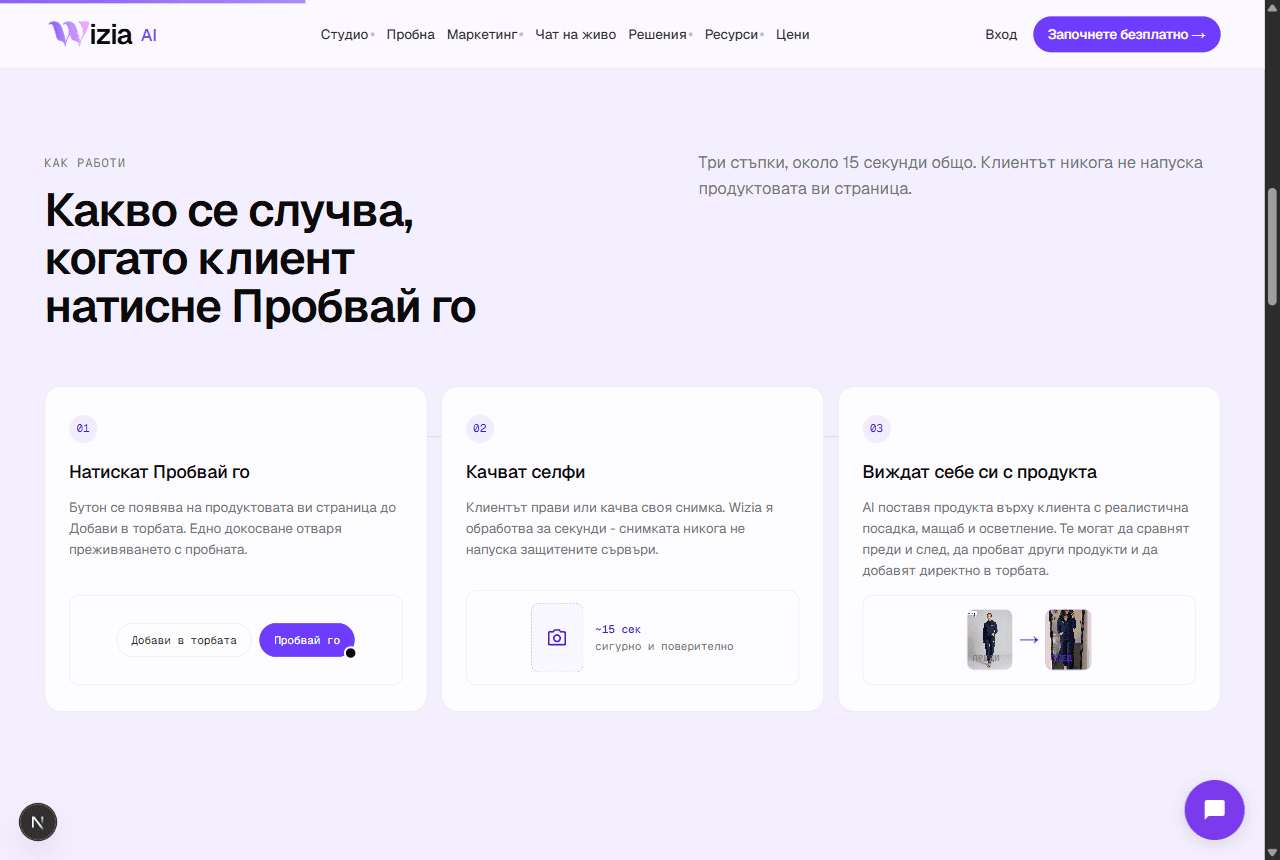
The widget renders only on product pages and attaches itself to the main product photo automatically. If you can't see it, walk this list top to bottom: it covers over 90% of cases.
Is the snippet actually on the page?
Open a product page, right-click → View Page Source, and search for “wizia-tryon”. If it's missing, the code wasn't pasted or your theme wasn't published after the change.
Is it using the right ID?
The snippet must carry data-user-id with your ID (see Try-on → View widget code). A snippet copied from another account or an old email won't work for your store.
Is this a product page?
The widget looks for a product image on the page. It intentionally doesn't render on the homepage, category pages, or the cart.
Caching and optimizers
Cache plugins (LiteSpeed, WP Rocket) and script optimizers sometimes delay loading. Clear your site cache and test in an incognito window.
Try-on limits
Try-on → Settings has daily limits for anonymous shoppers. With a limit of 0 the button doesn't render at all: raise the limit.
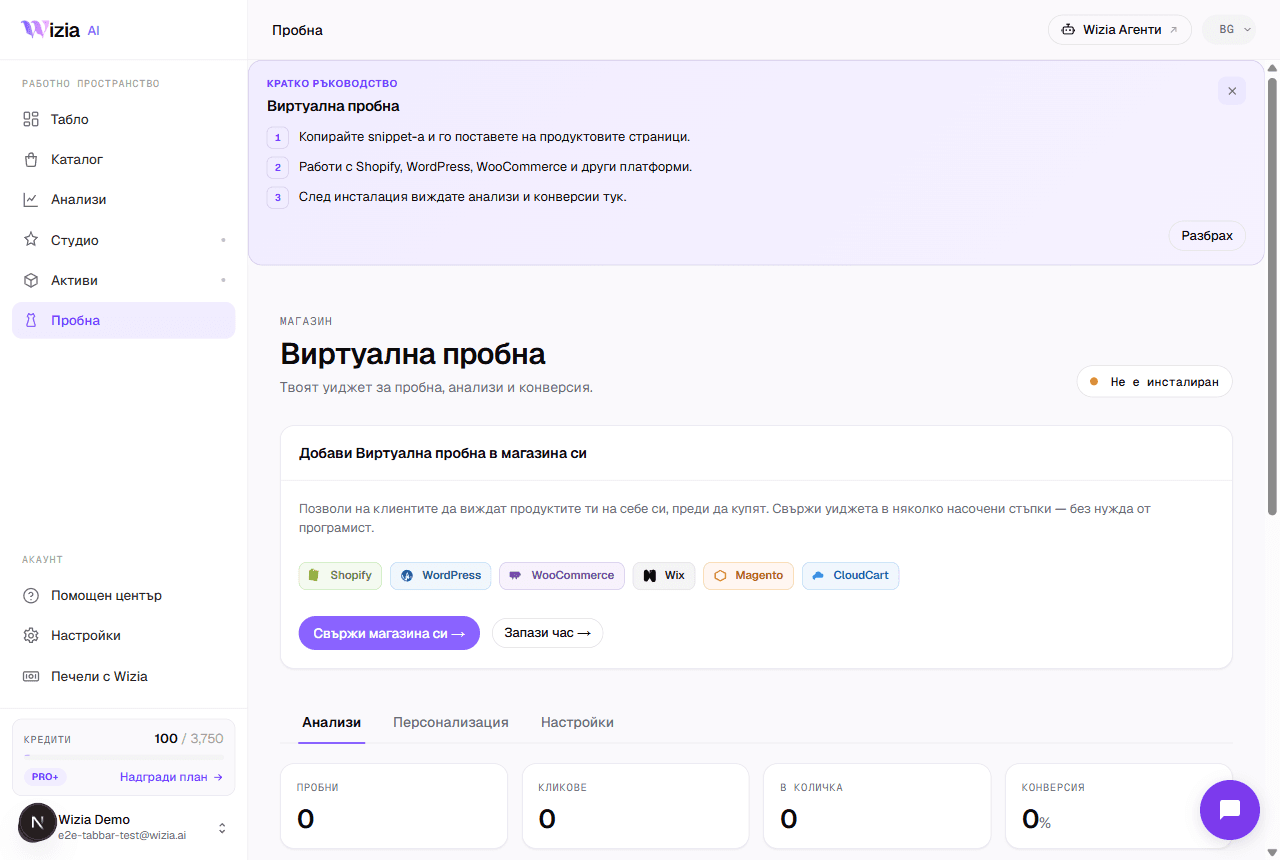
Tip: The Re-check button scans your page from our servers and detects a wrong ID, a missing snippet, or an unreachable site: start there before debugging by hand.
If nothing on the list helps, email support@wizia.ai with the product page URL: we reply within one business day.