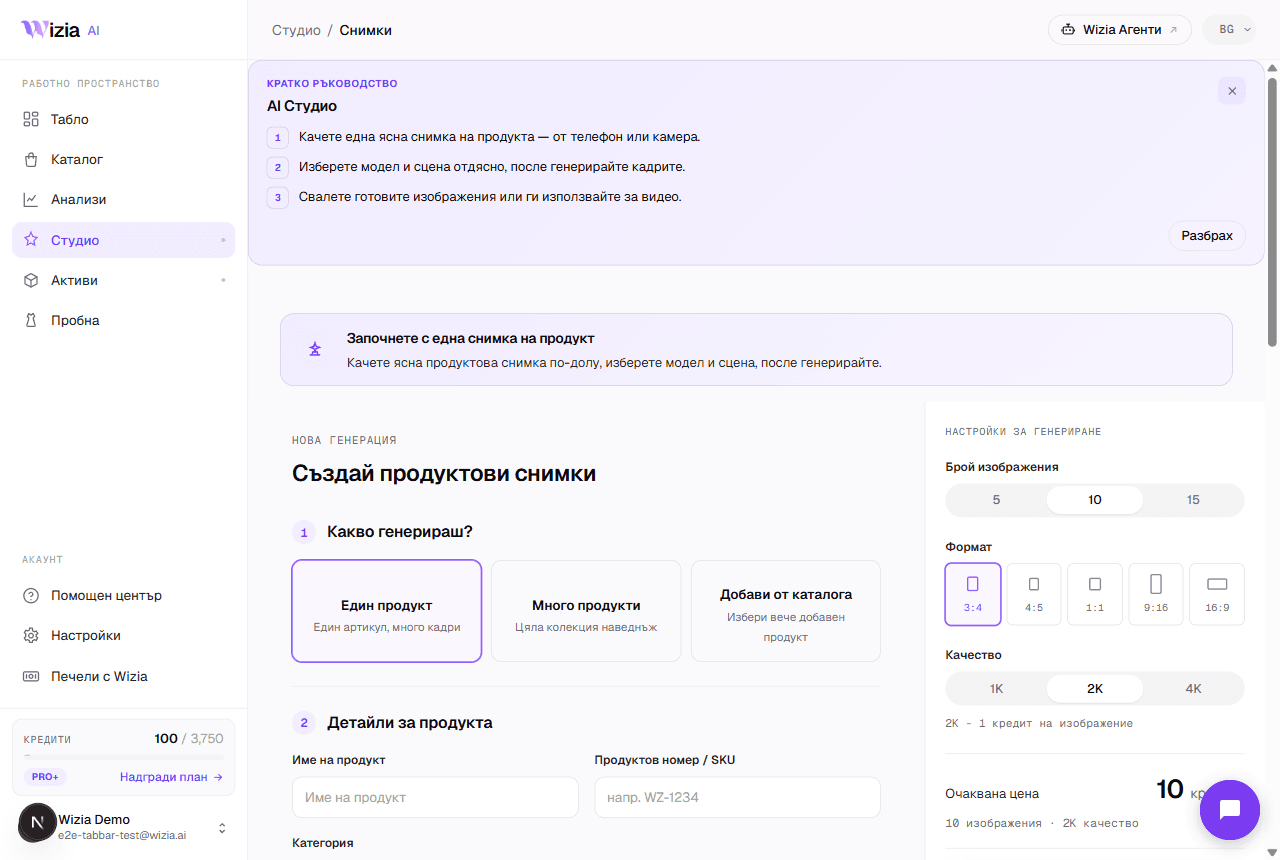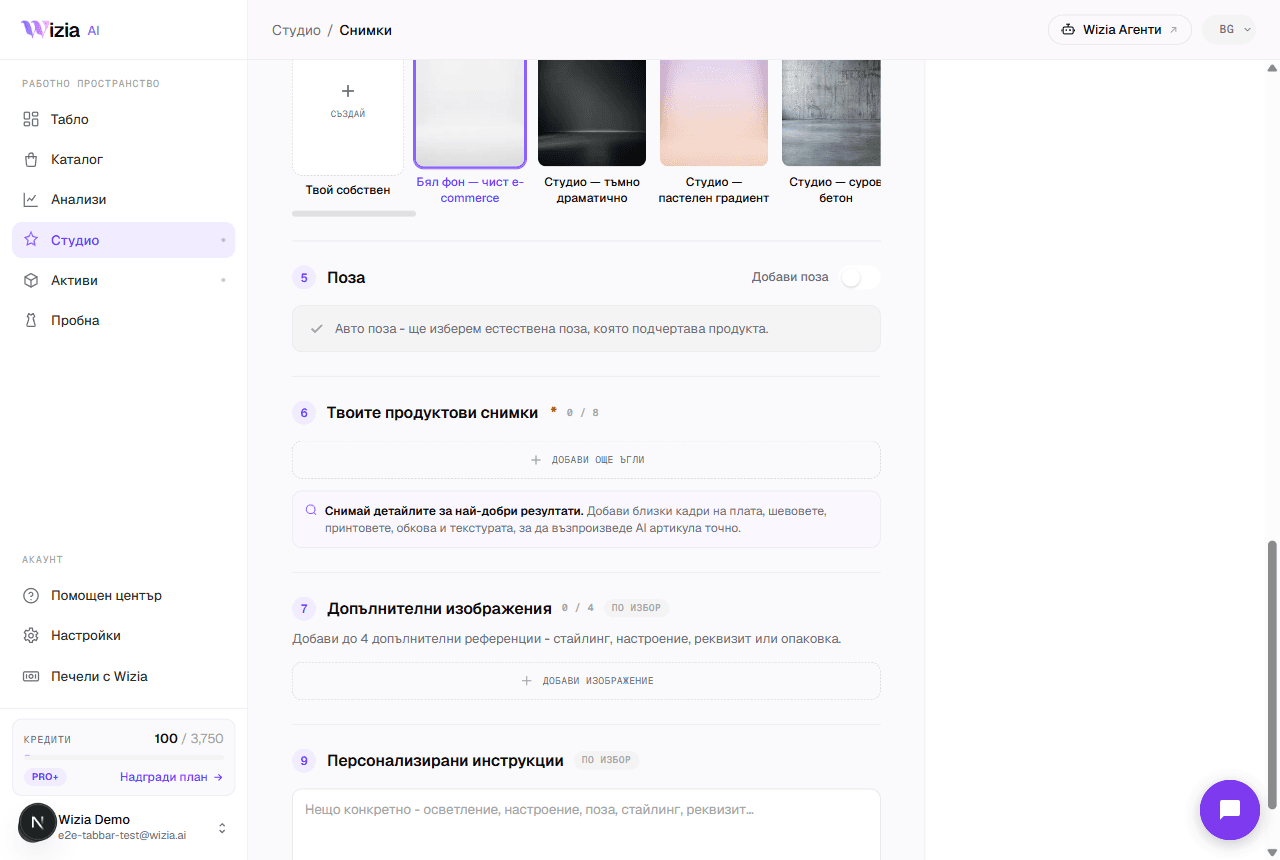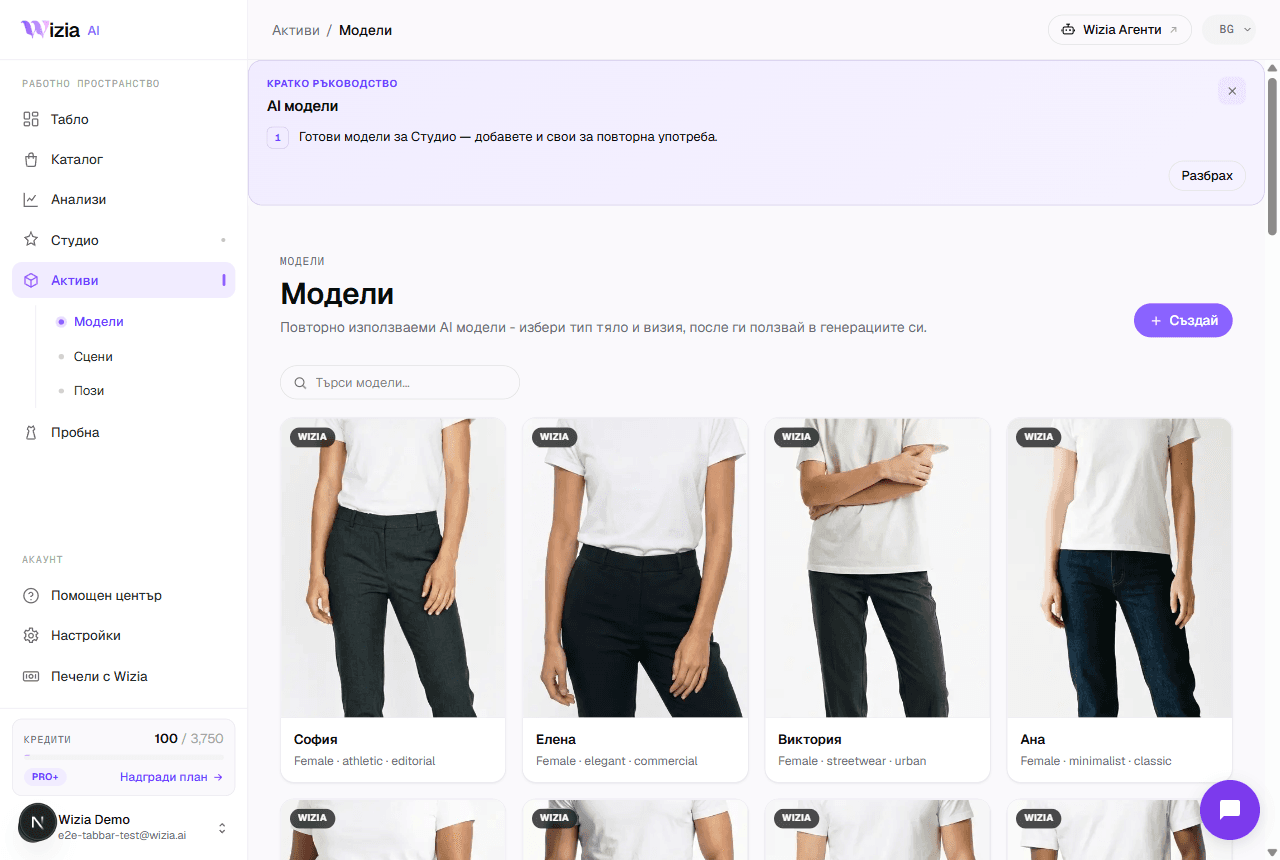
Wizia connects to your store in three ways: the Virtual Try-on widget installs directly on your site, finished photos and videos download as ordinary files that work anywhere, and the AI agents run on our platform: nothing to install.
The Virtual Try-on: six platforms
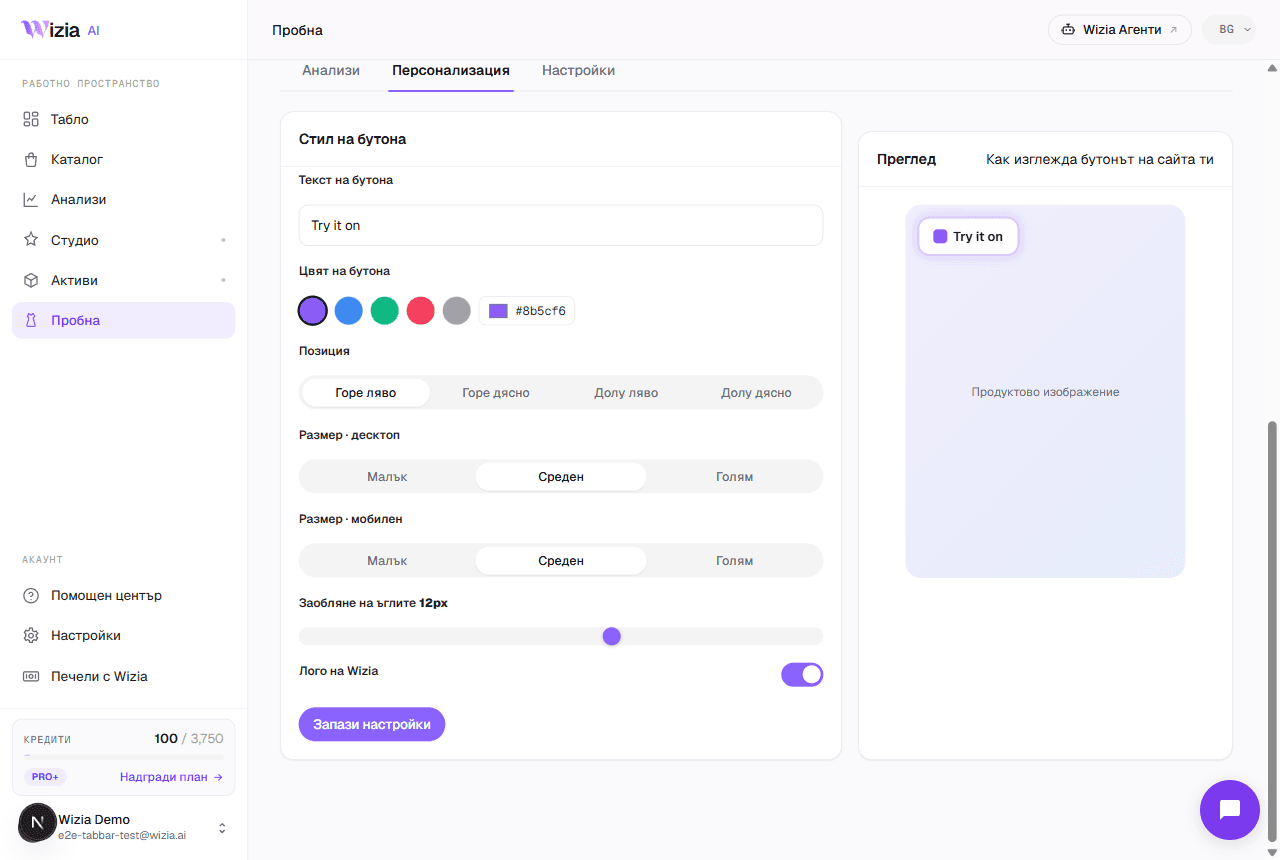
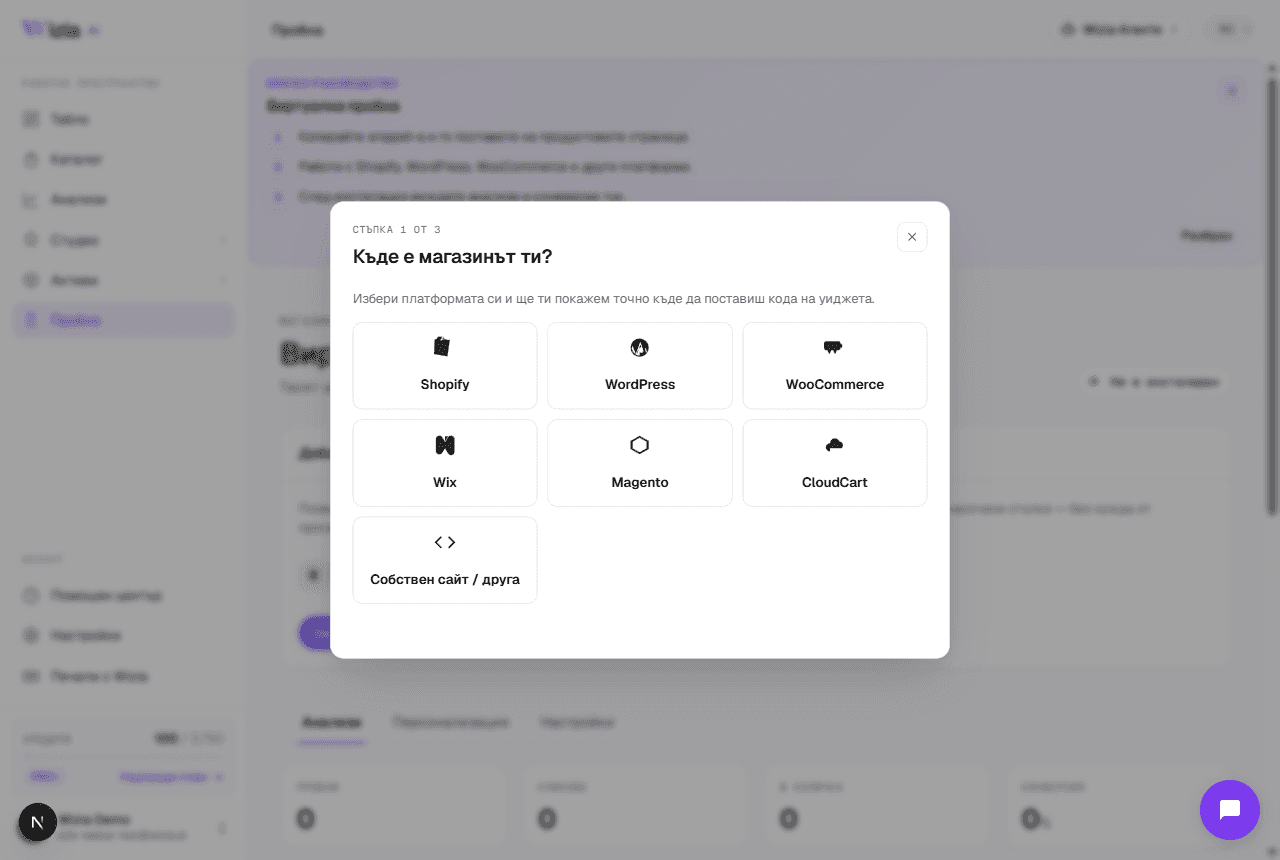
The widget is one line of code pasted before the closing body tag. The Connect wizard has ready-made instructions for Shopify, WooCommerce / WordPress, Wix, Magento, and CloudCart, and the Custom site option covers any platform where you can add HTML (including bespoke builds. After pasting, the built-in check confirms the widget is live with your ID. Once installed, the button is fully customizable from the Personalize tab on the Try-on page) text, color, position, size, and logo, without touching the code again.
Photos and videos: for every channel
Generated assets are standard files (images and MP4 videos. Download them from the product page in the app and upload them anywhere: product pages on any store, marketplaces, ads, email campaigns, and social media. Videos come vertical at 9:16) ready for Instagram Reels and TikTok with no extra processing. No integration is needed here at all.
AI agents: on our platform
The marketing agents (for email, social channels, and messaging) run entirely inside Wizia and require no code on your store. Connecting your channels and brand tone happens together with our team during onboarding.
Tip: If your platform isn't on the list, pick Custom site in the wizard: the widget snippet is a plain script and works on any page where you can add HTML.