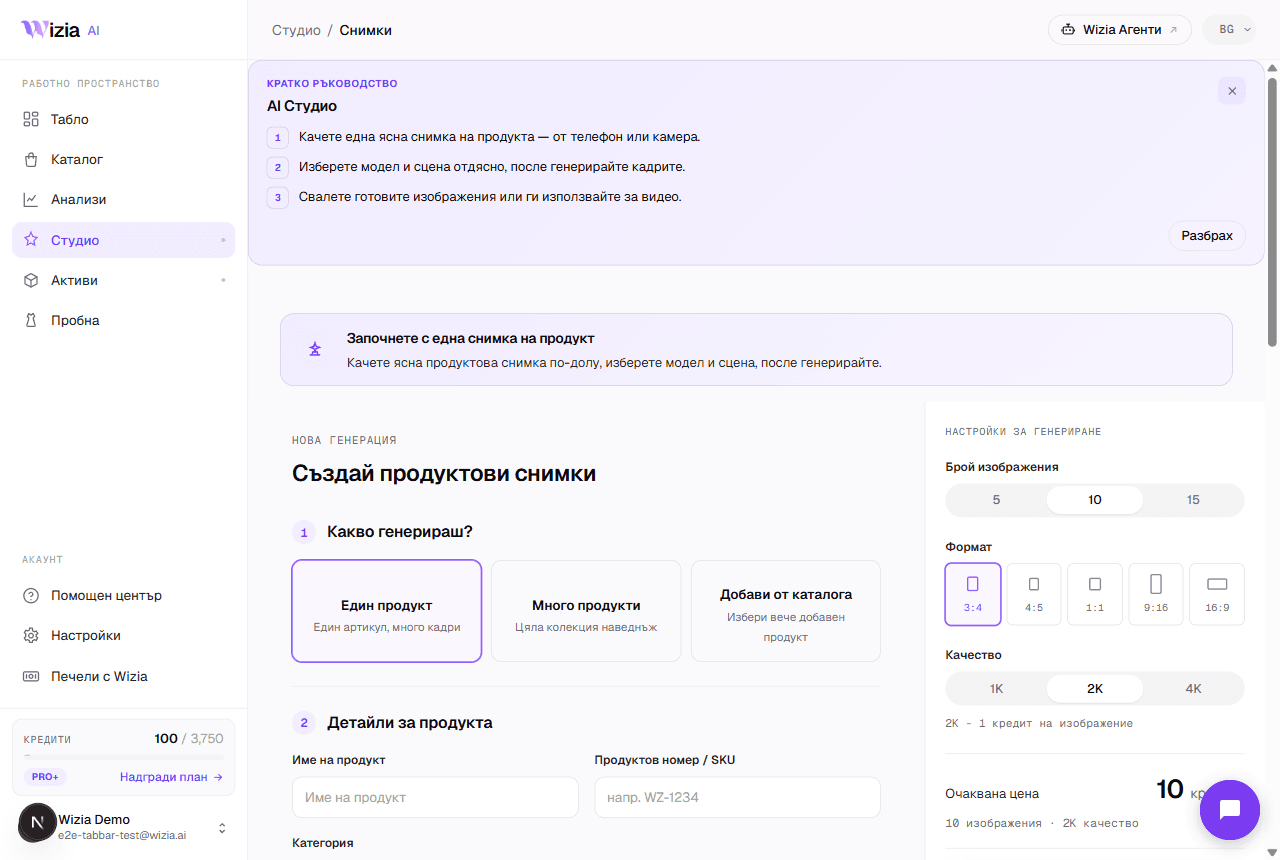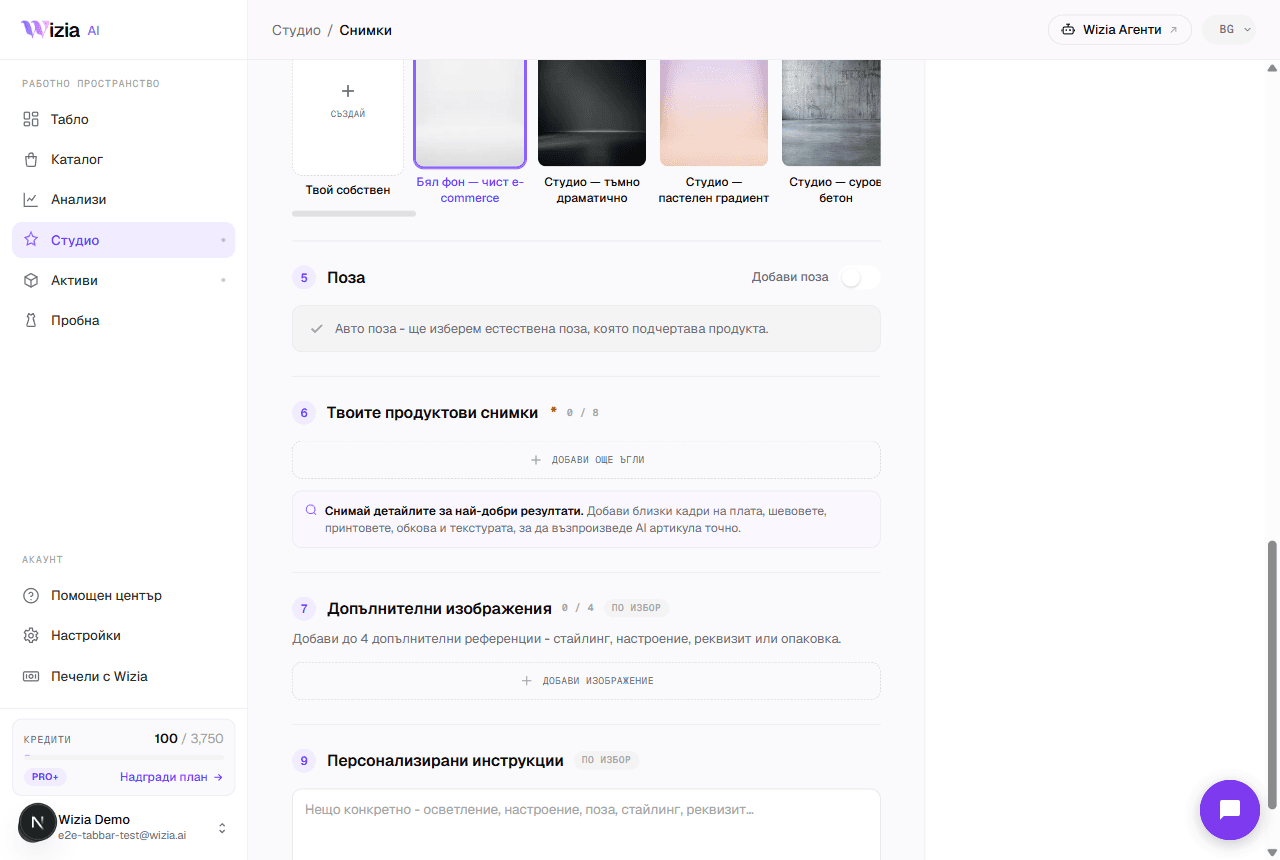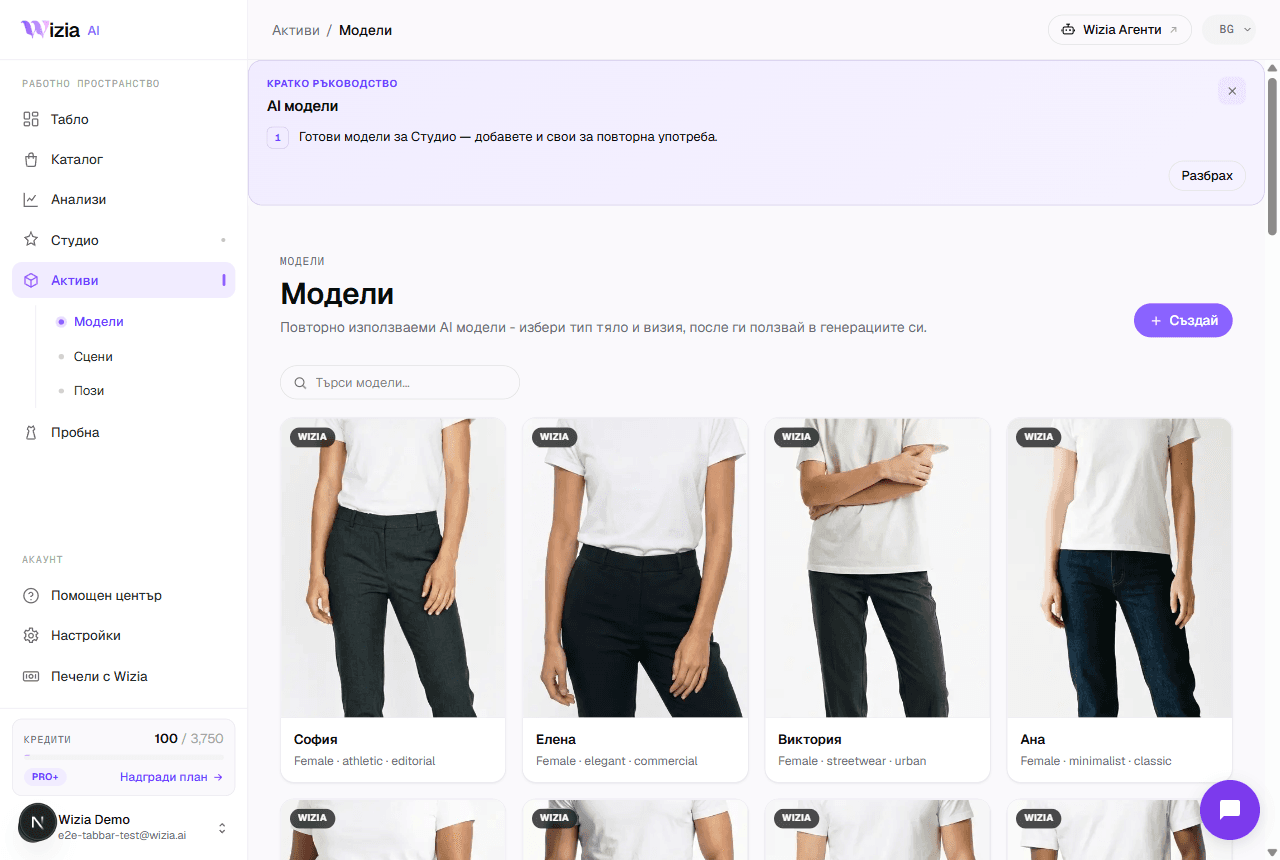
The Video studio creates short product videos from the photos you have already generated. It works on top of a completed product session: you upload the product once in the Images studio, then make as many videos as you want from the same product without re-uploading anything.
How to create a video
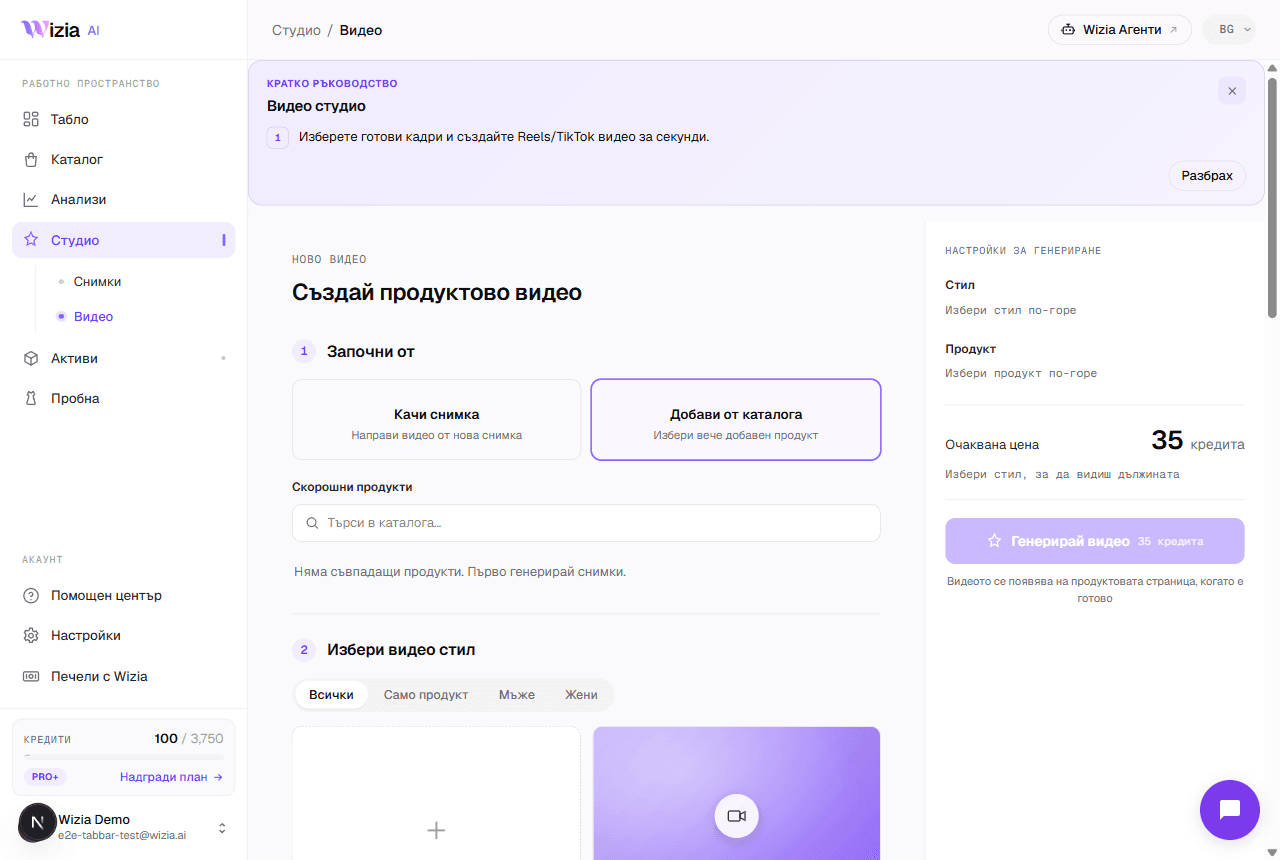
Open Studio → Video
In the app, choose Studio and the video tab. You can also start from a specific product page: the finished video shows up right there.
Pick a product from your catalog
Search your recent products and select one. If the list is empty, generate photos in the Images studio first. Video straight from a fresh upload is coming soon.
Choose a video style
Filter styles by Product only, Men, or Women. Hover over a style to see a motion preview; each style shows its environment and duration.
Press “Generate video”
The cost is shown up front in the generation panel. The video renders in the background and appears on the product page when it's ready.
Styles and what to expect
Styles come in three kinds: product only (for example a slow 360° orbit or a dramatic reveal), with a male model, and with a female model: a street walk, an editorial studio pose, a park stroll, and more. Model styles suit clothing and accessories; product styles suit everything else. Custom styles are coming soon.
Cost, format, and where to use it
Every video costs 35 credits, regardless of style. The result is roughly 8 seconds, vertical 9:16 at 1080p: exactly what Instagram Reels, TikTok, and Stories expect. Download the file from the product page and post it straight to social media or your store.
Tip: Generate all the product's photos first and pick the strongest one as the cover: the video builds on the same session's material, so a better session makes a better video.